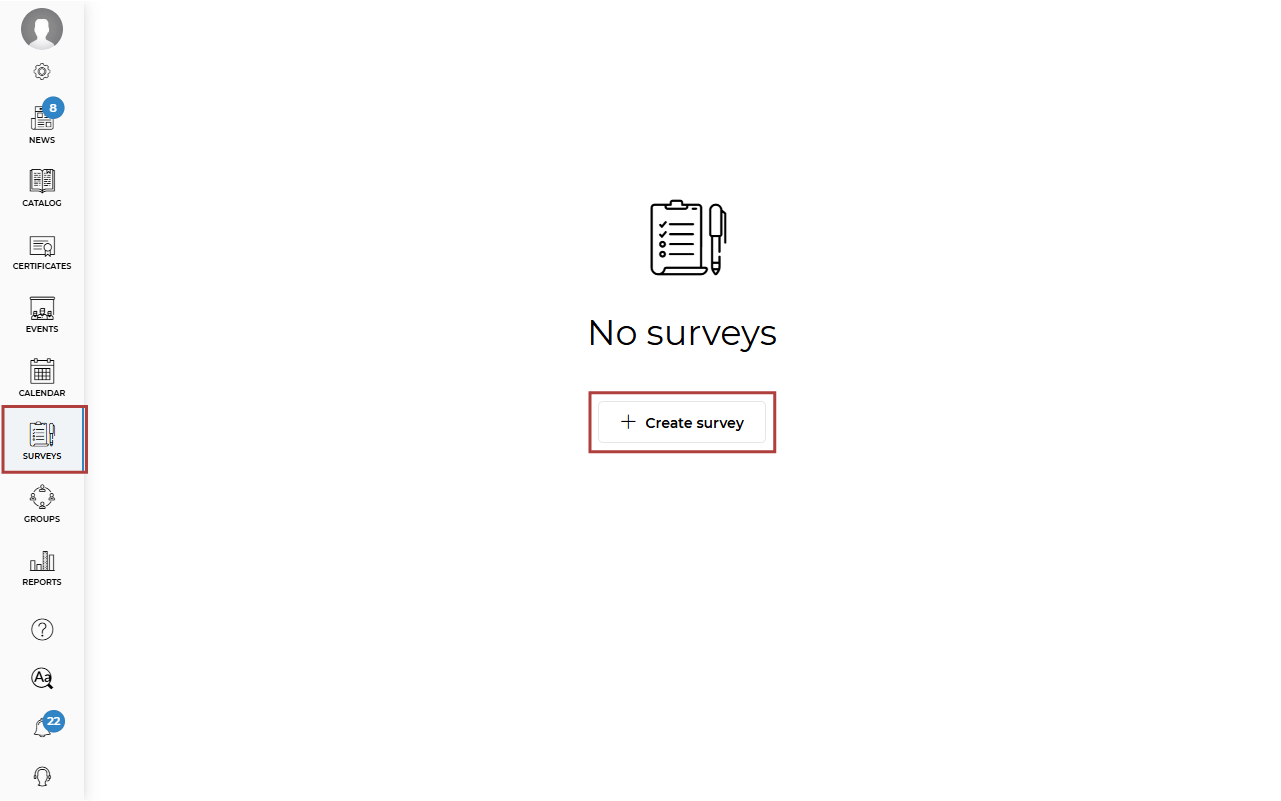
To create a Survey, go to the Surveys section and click Create survey.
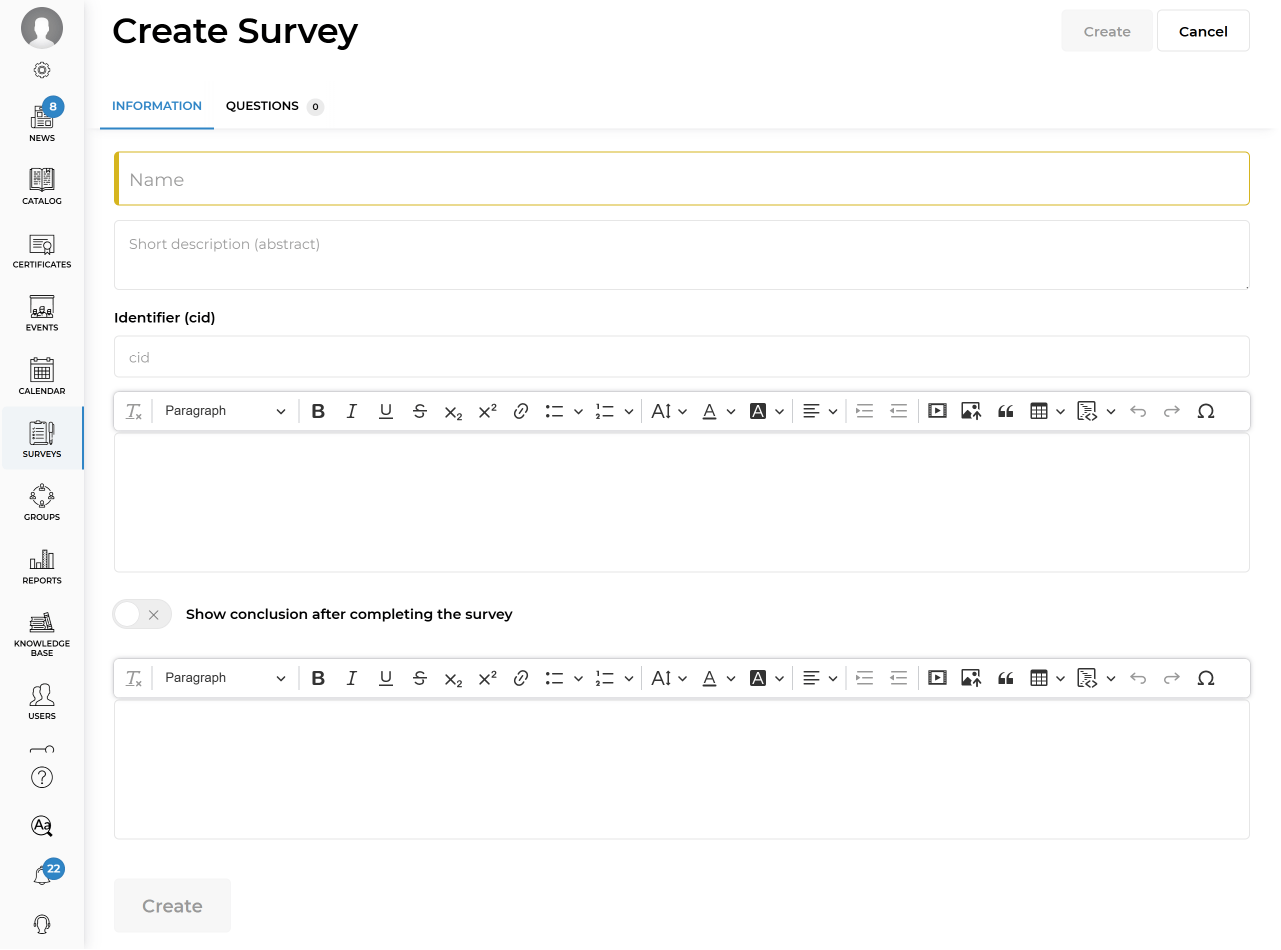
On the Information tab, enter the Survey name (required) and any additional information if needed. If you enable the Show conclusion after completing the survey option, learners will see the text you provide after submitting their survey responses.
Next, go to the Questions tab and choose the type of question you want to create.
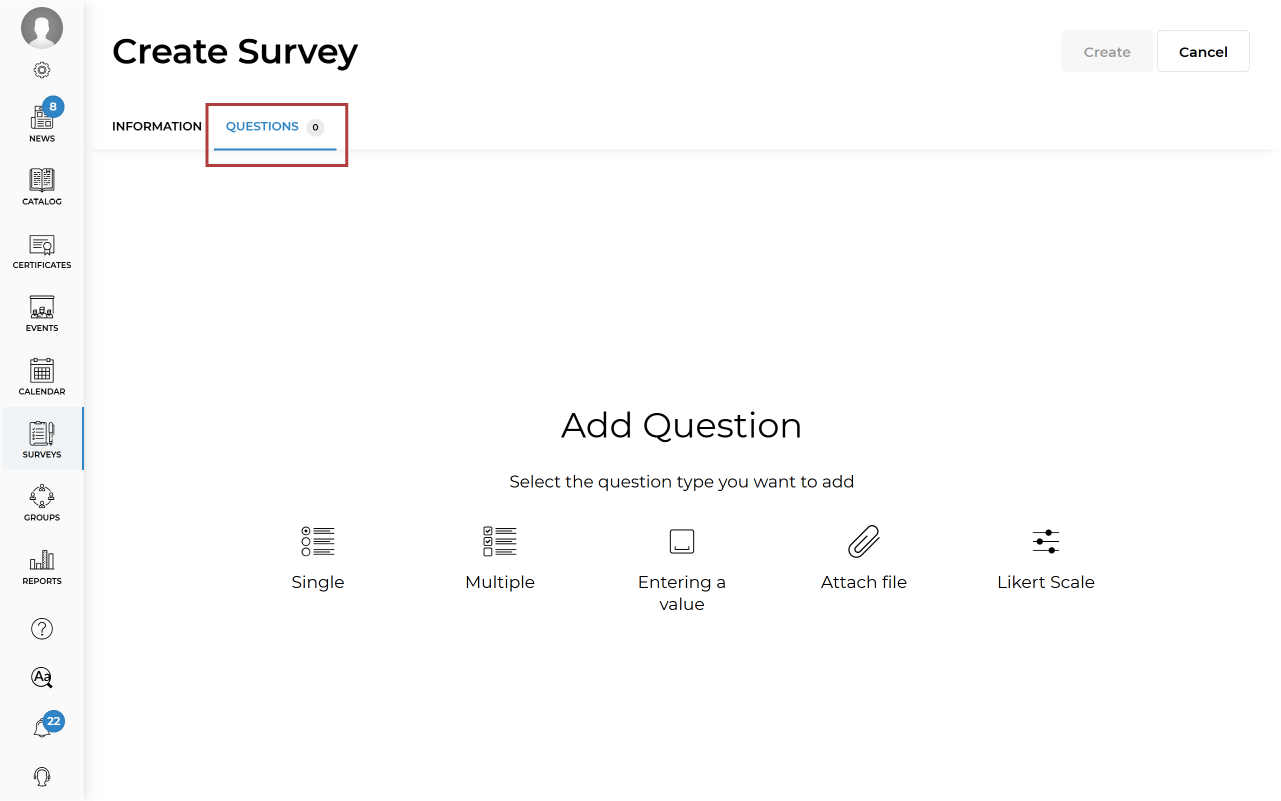
There are five question types available:
- Single. Learners can select only one answer.
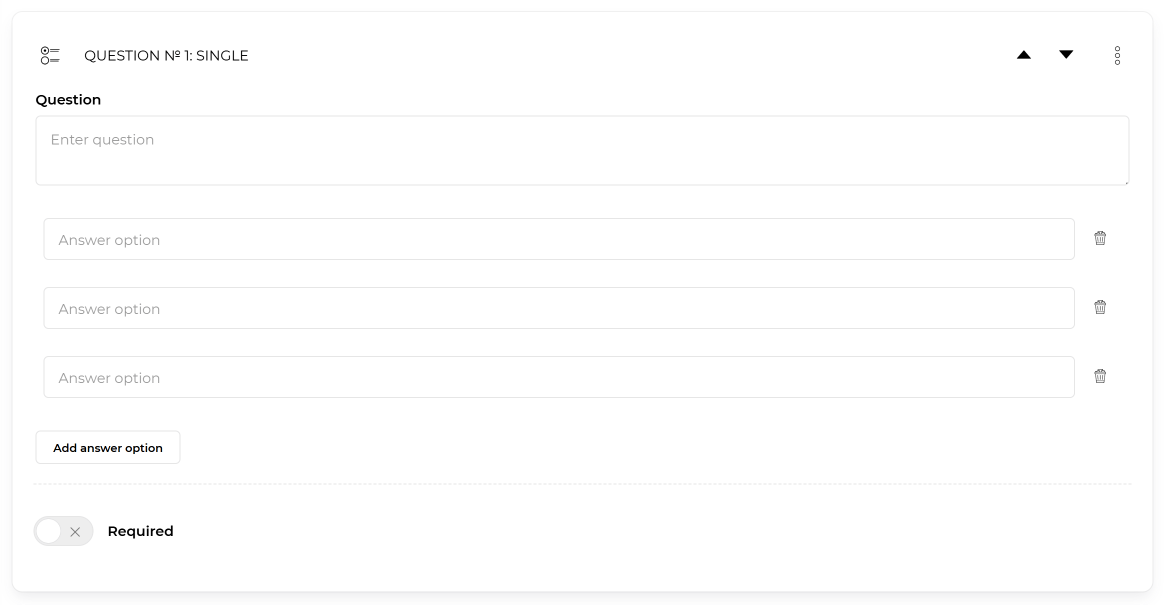
- Multiple. Learners can select multiple answers.
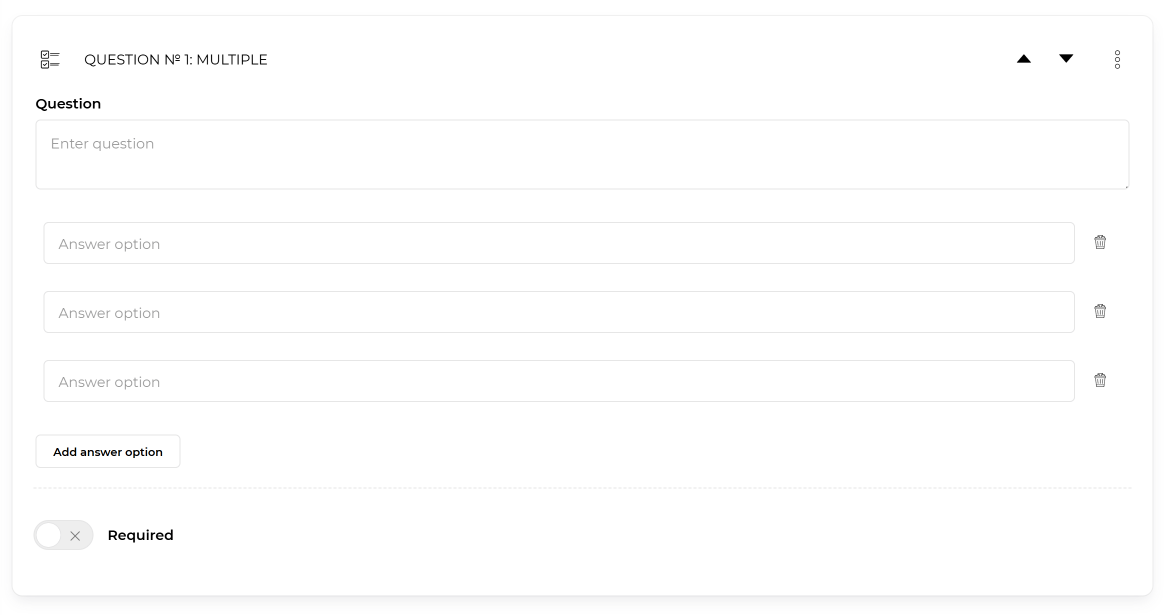
- Entering a value. This is an open-ended question without predefined answers. You can also allow learners to attach a file.
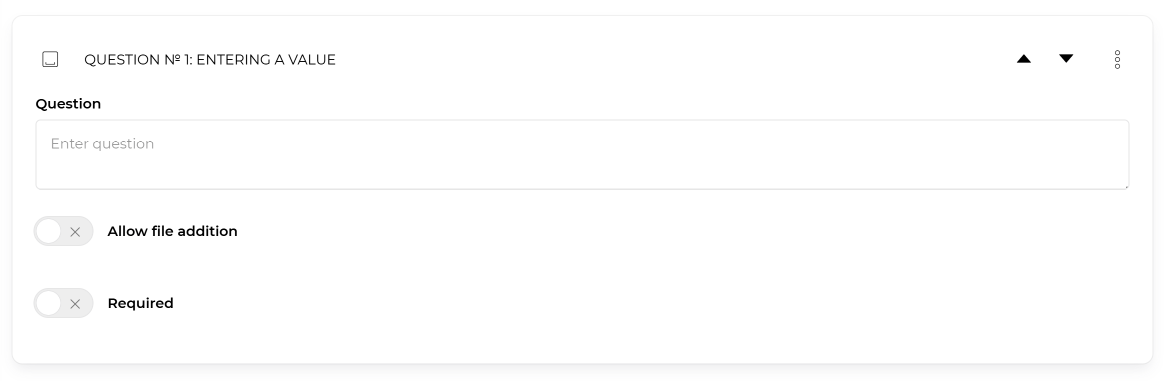
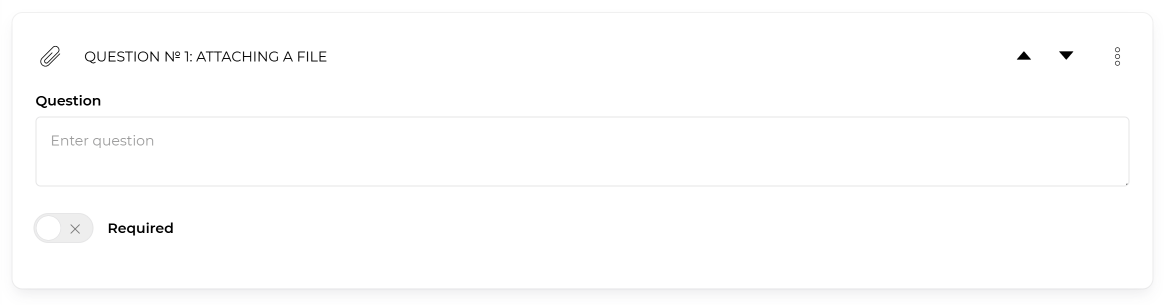
- Attach file. Enter your question, and learners will respond by uploading a file.
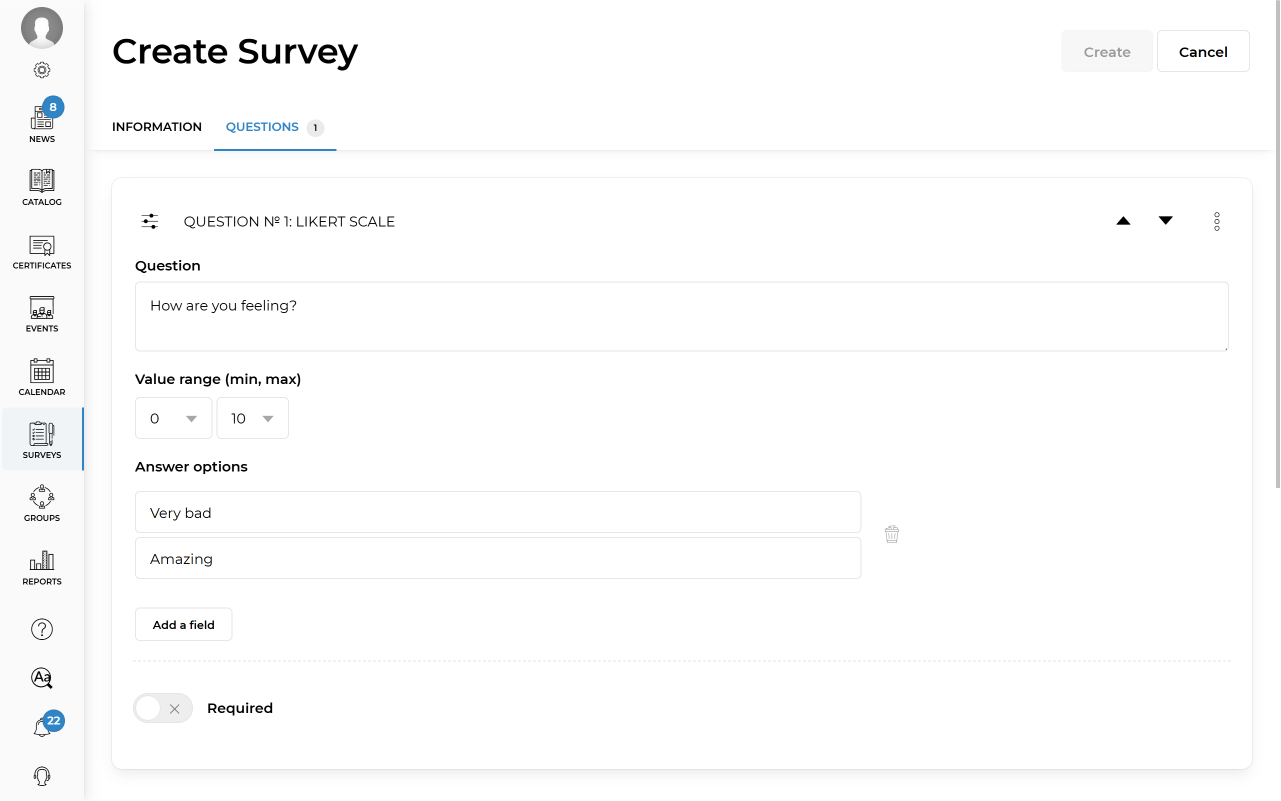
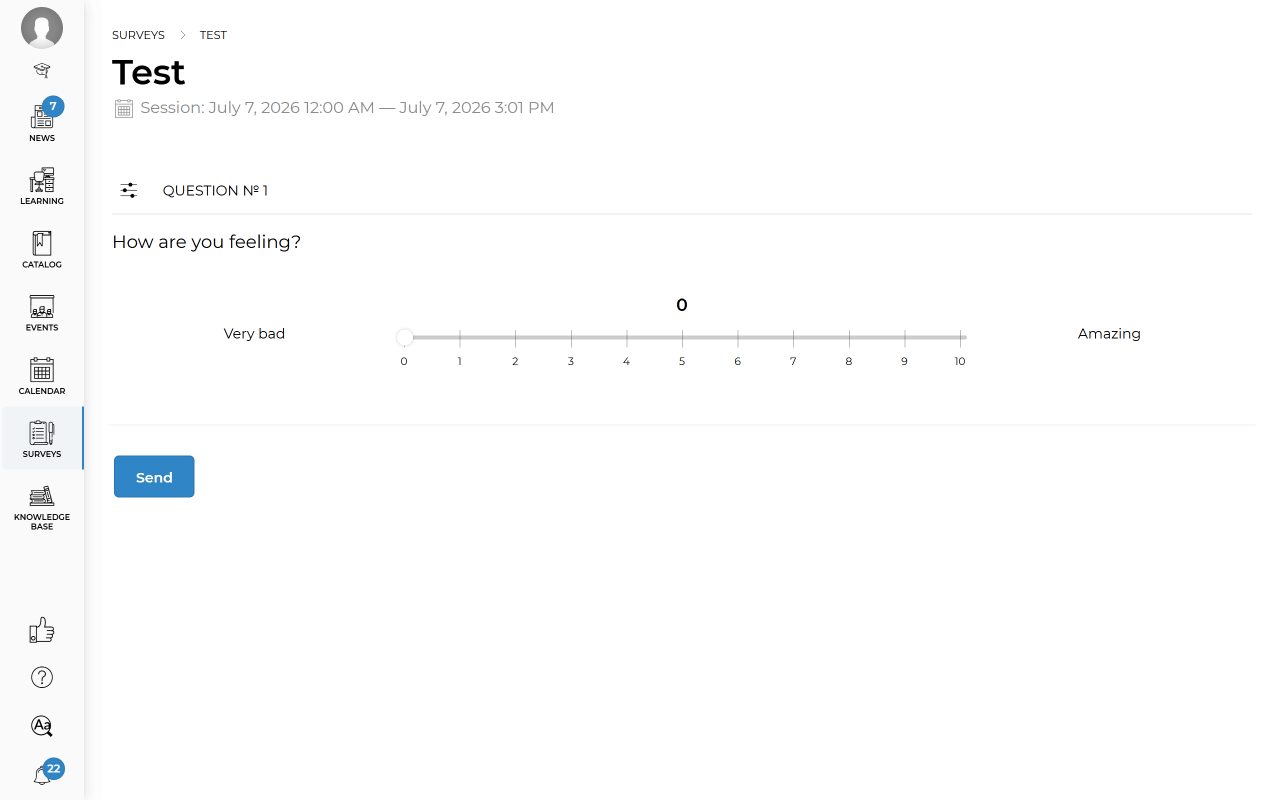
- Likert Scale. Enter your question and specify the minimum and maximum values. Learners can use a slider to select the value that best reflects their opinion.
Administrator View
Learner View
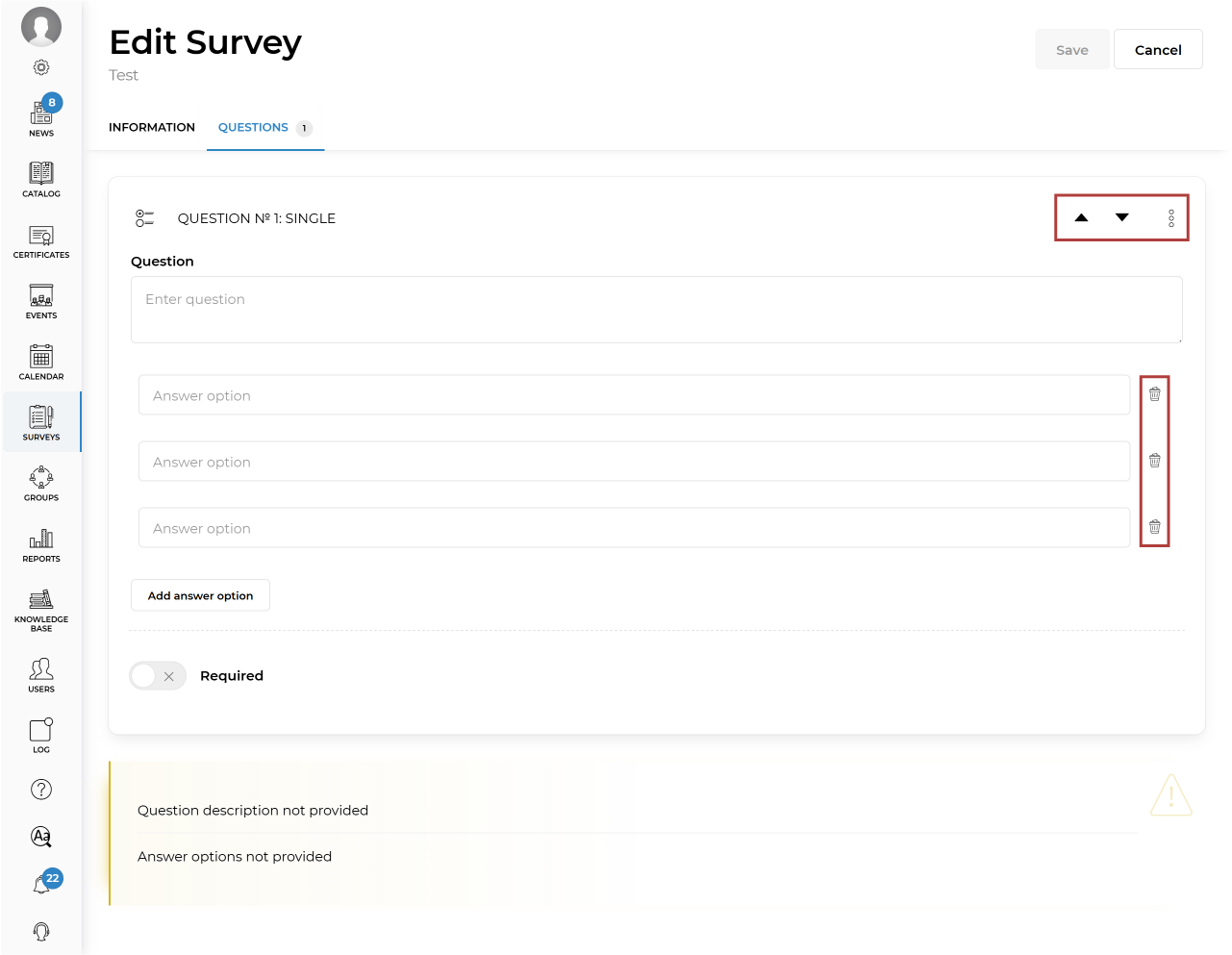
Let’s look at creating a Single Choice question as an example. You can reorder questions using the arrow buttons, duplicate or delete a question from the three-dot menu, remove answer options using the trash icon, and add new answer options using the corresponding button below the list of answers. If you enable the Required option, learners will not be able to submit the survey until all required questions have been answered.
After adding the survey information and questions, click Save in the upper-right corner of the screen. If you do not want to save the survey, click Cancel.
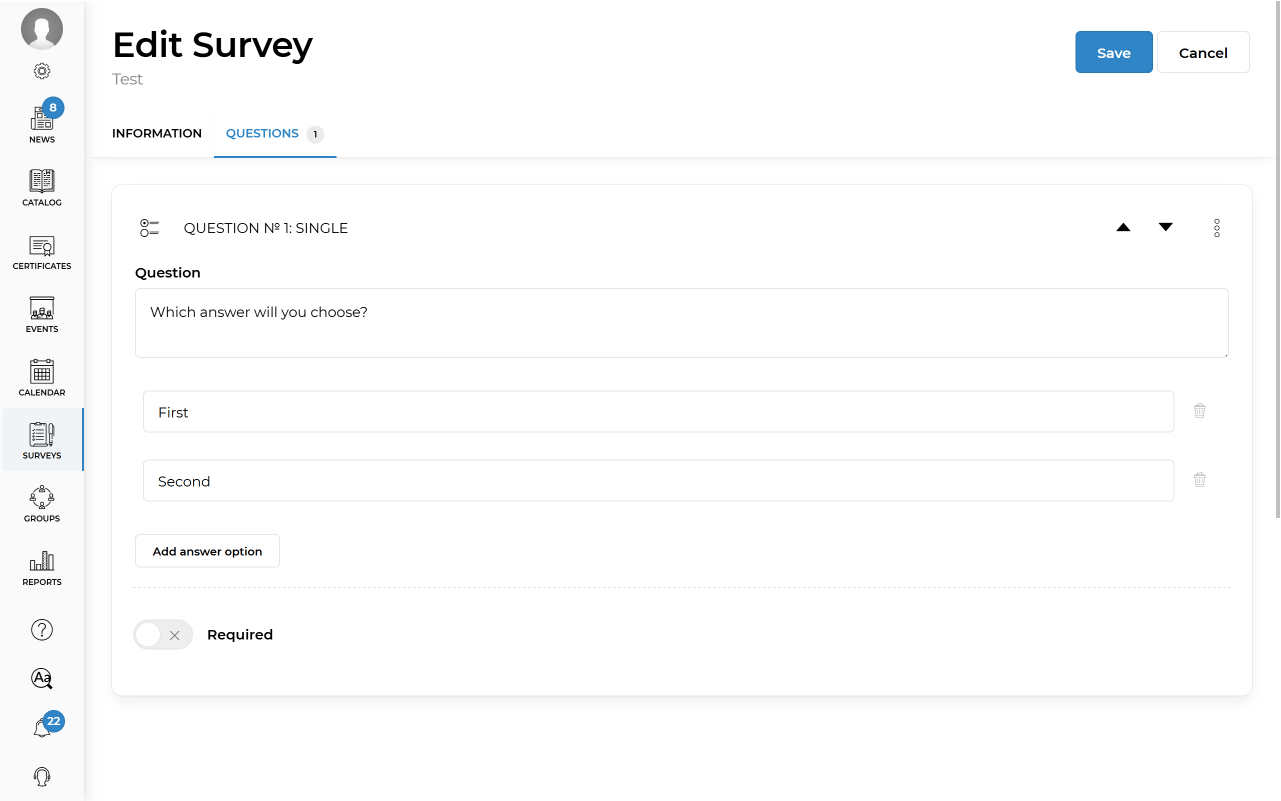
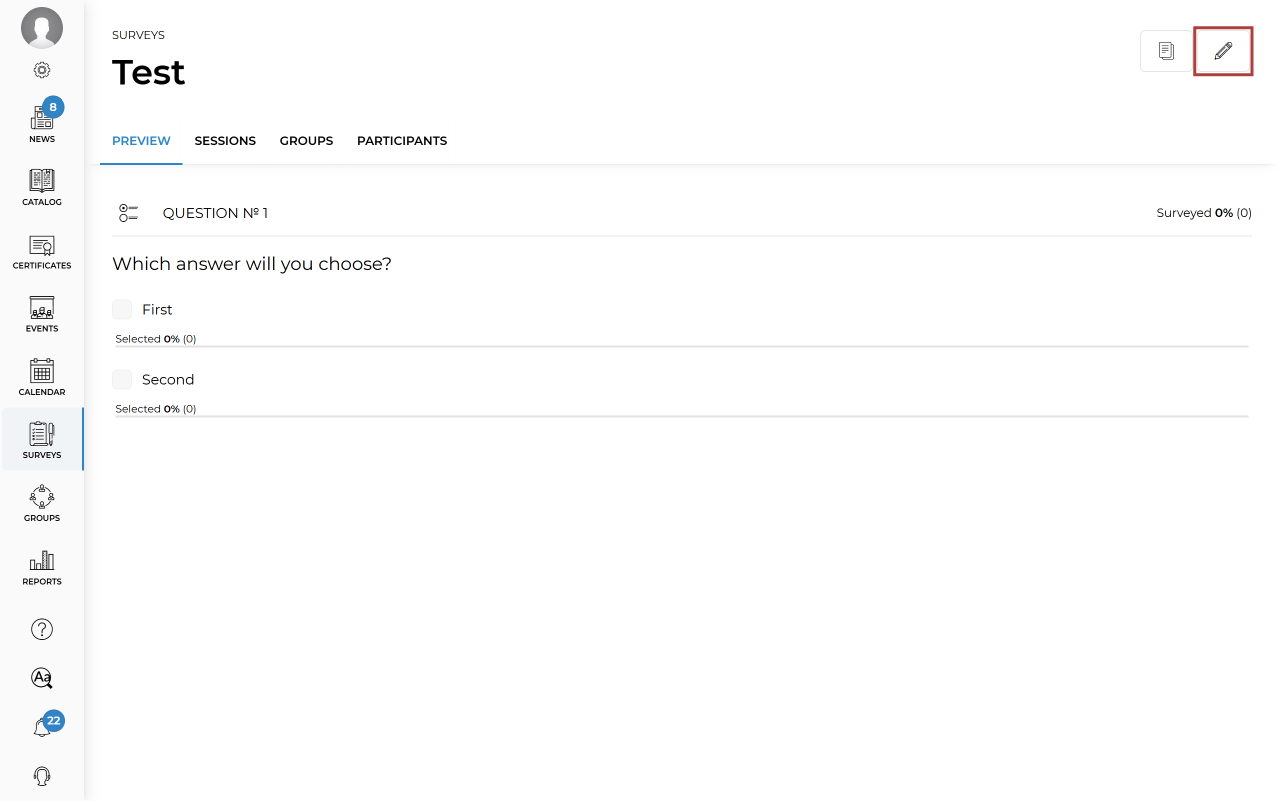
To edit a survey, click the Edit icon.
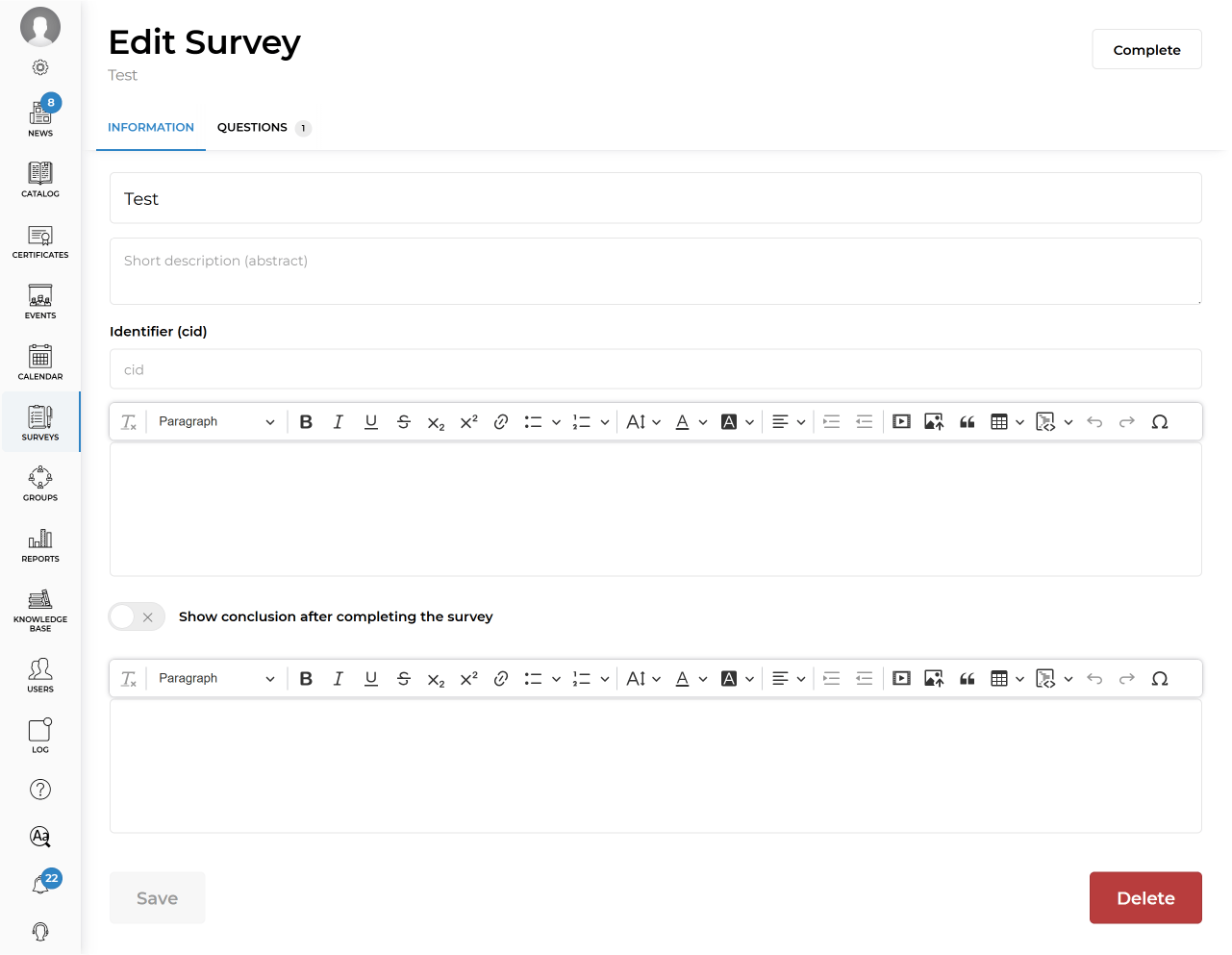
To delete a survey, open it in edit mode and click Delete.
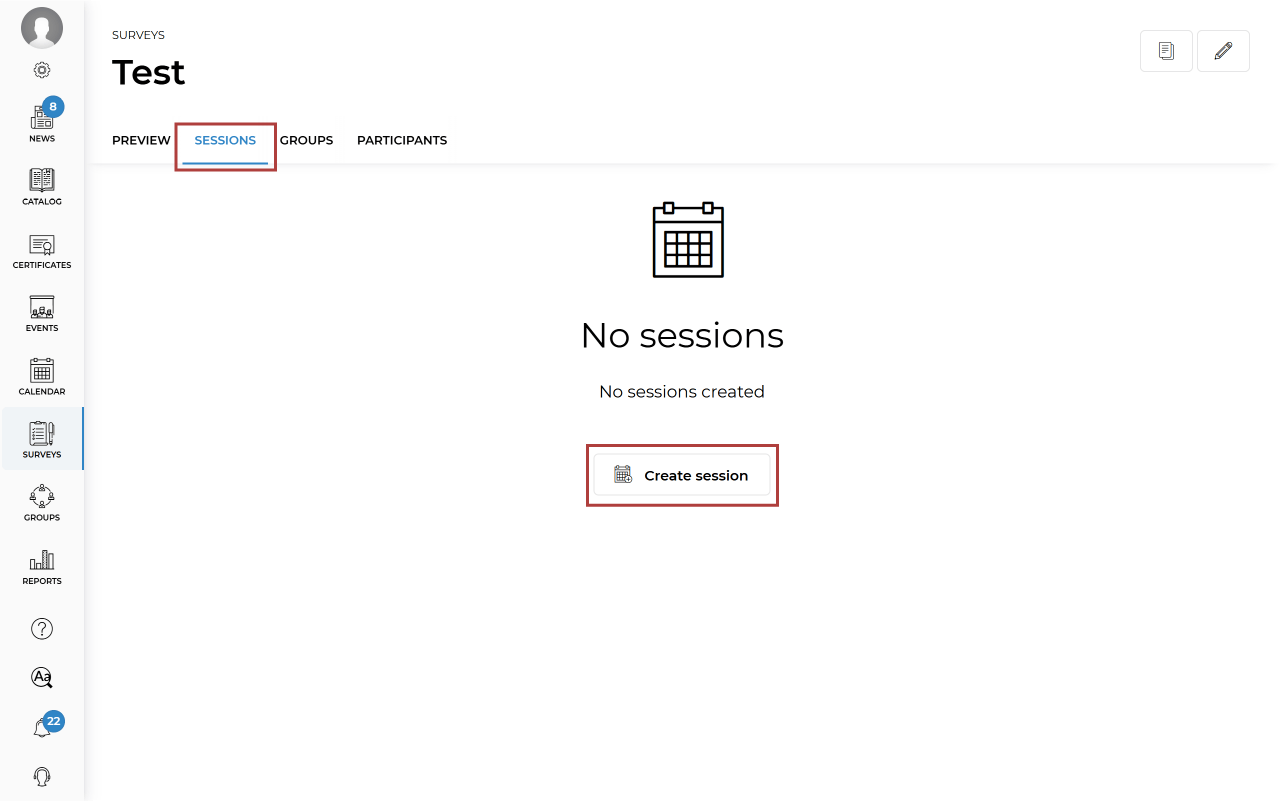
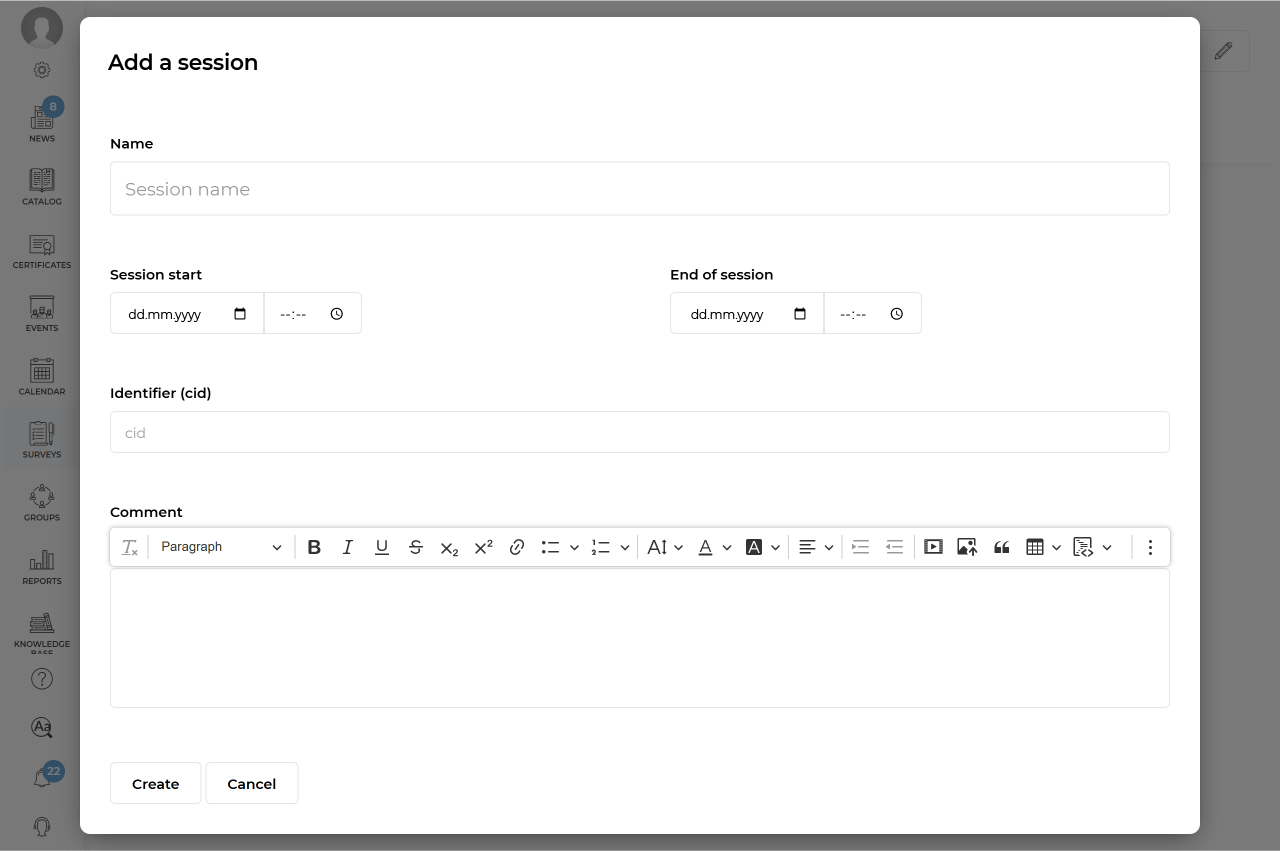
After creating a survey, you need to create sessions to assign learners. Go to the Sessions tab and click Create session.
When creating a session, you can optionally specify its name, date and time, personal identifier, and comment. If you set a start and end time, learners will only be able to complete the survey during that period. Otherwise, the survey will remain available at any time. Click Create to finish.
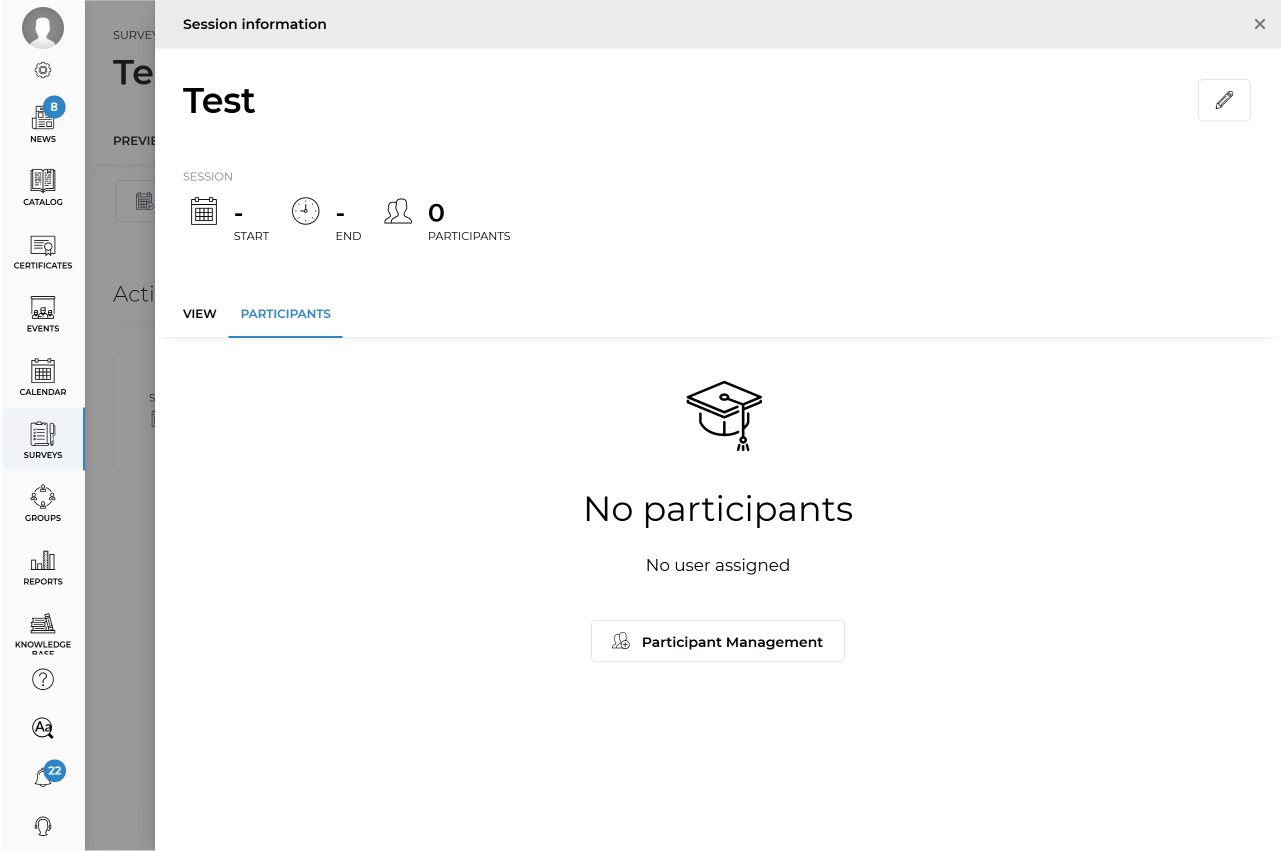
You can assign learners to a survey in two ways:
- Open the survey session, go to the Participants tab, click Participant Management, add the required learners to the assigned list, and click Save.
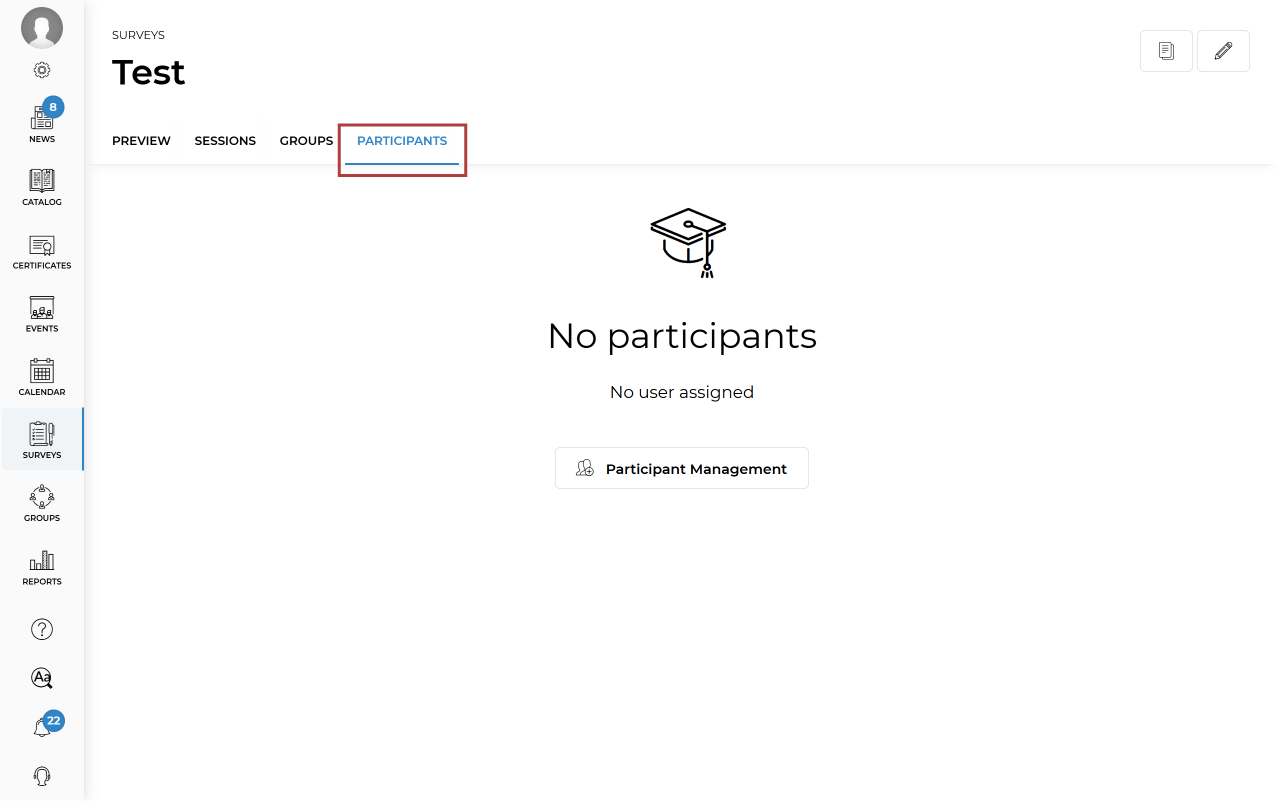
- In the survey, go to the Participants tab, click Participant Management, add learners to the assigned list, select a session from the drop-down menu, and click Save.
If you assigned a learner to a survey without selecting a session, click the three-dot menu next to the learner’s name, select Select a session, assign the appropriate session, and click Save. Important! Learners cannot complete the survey unless they are assigned to a session.
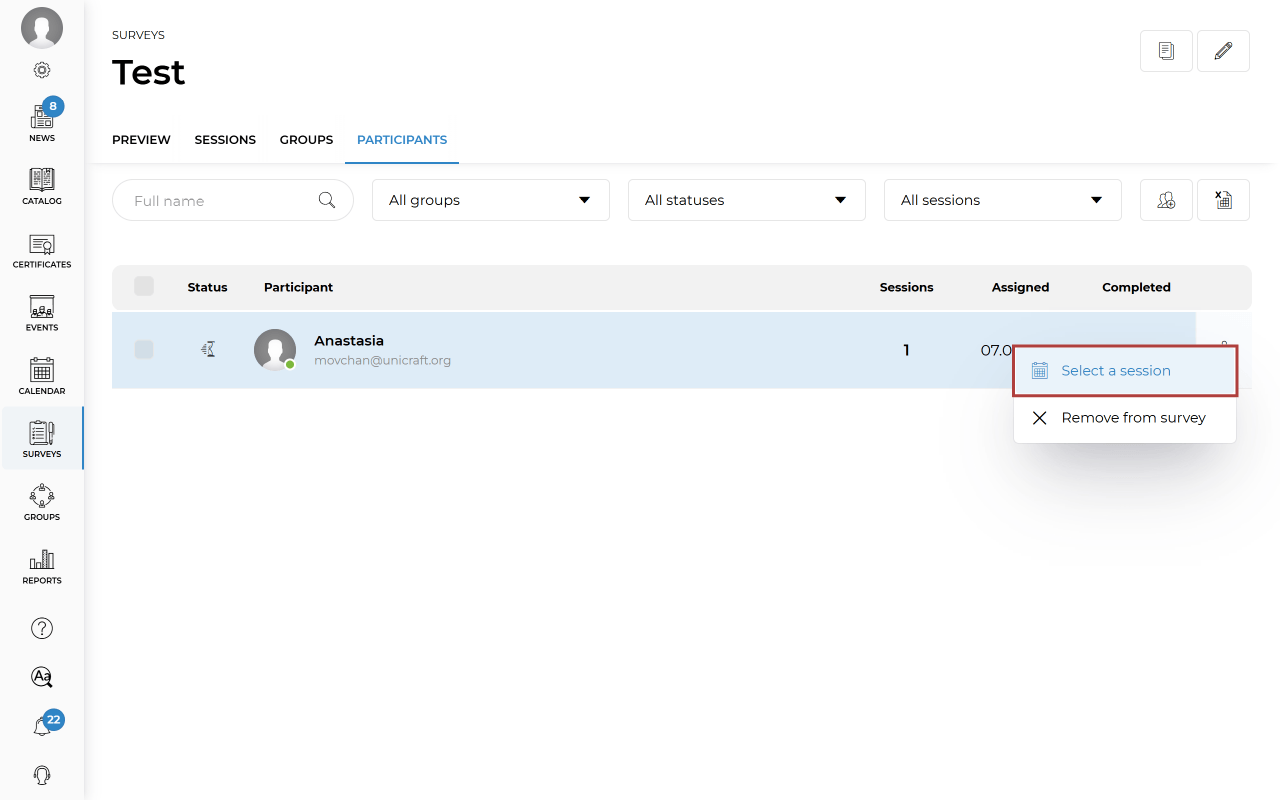
To completely remove a learner from the survey, click the three-dot menu next to their name and select Remove from survey.
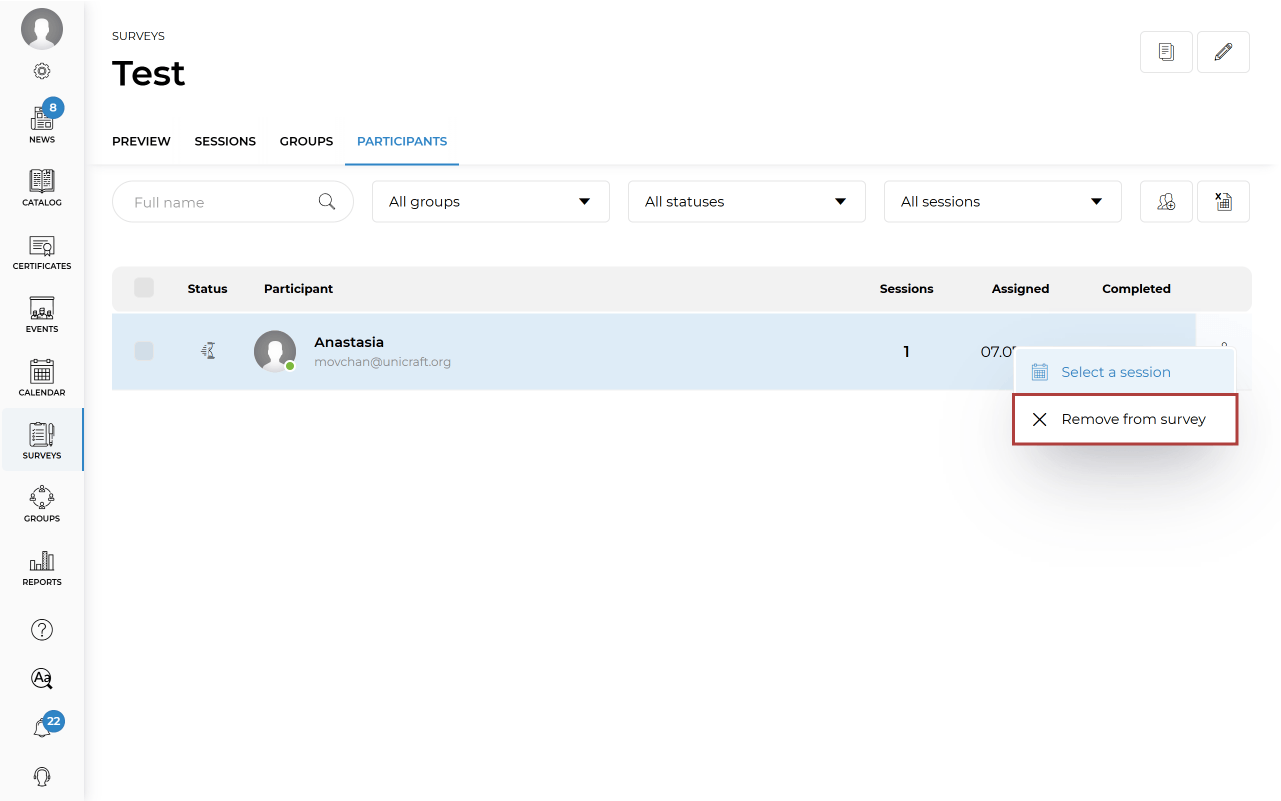
If you want to remove a learner only from a specific session rather than from the entire survey, remove them from the assigned participants list within that session.
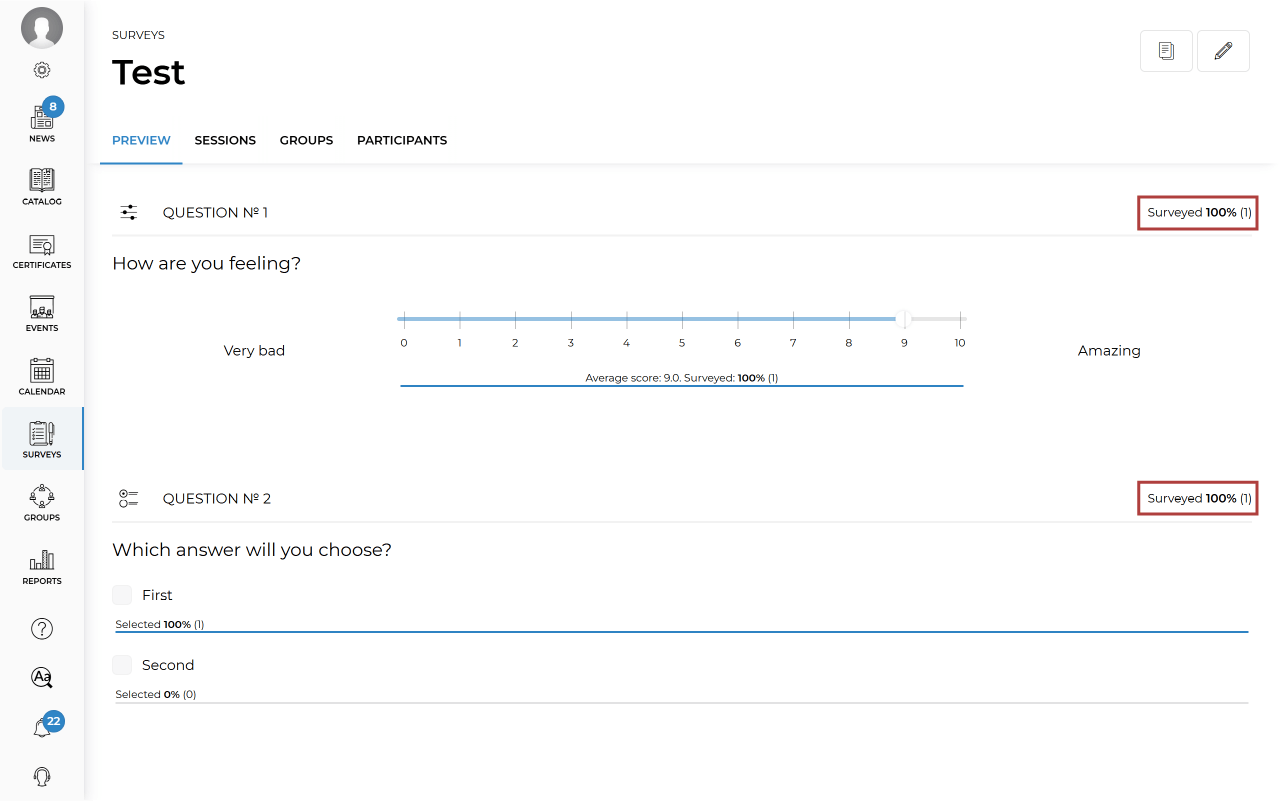
To view an overview of the responses submitted by assigned learners, open the Preview tab.
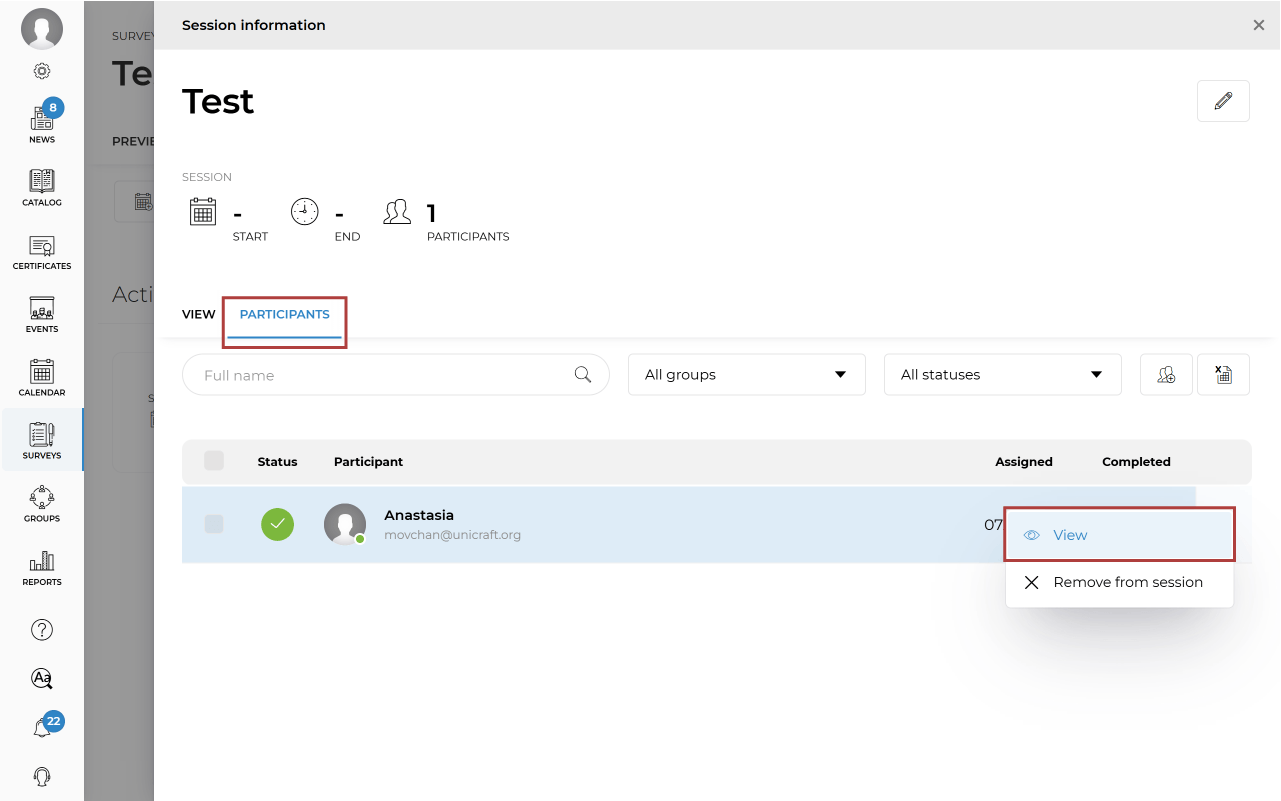
To view an individual learner’s responses, open the required session, go to the Participants tab, click the three-dot menu next to the learner’s name, and select View.
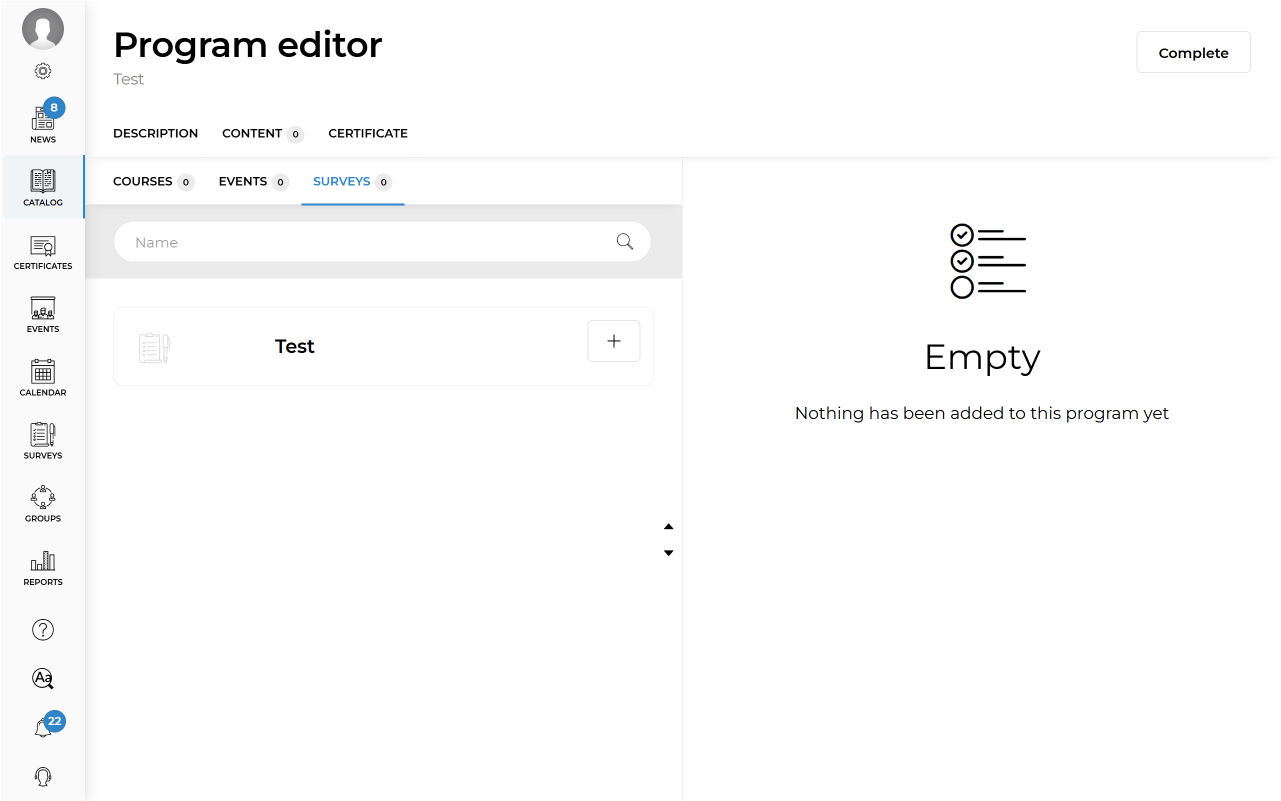
You can also add a survey to a training program. Open the program in edit mode, go to the Content tab, move the required survey to the right side of the screen, and click Save.
To add a survey to a group, open the required group, go to the Surveys tab, and add the necessary surveys. Group managers will then be able to view the added surveys and assign learners to them.